Turn a talking video into a vertical short, all on your own machine
A four-step local workflow (transcribe, cut silences, reframe to 9:16, burn captions) built from free skills on the TubeMarket shelf. No API key needed.
By TubeMarket · · workflow, shorts, captions, editing
Most talking-head videos need the same four chores before they work as a short: a transcript, the dead air removed, captions on screen, and a vertical crop that keeps the speaker in frame. Each of these has a free skill on the TubeMarket shelf that runs locally, so you can chain them without sending your footage to a cloud service or pasting an API key anywhere.
This post walks through that chain in order. It is a workflow, not a benchmark: we do not quote speed or accuracy numbers here, because those depend on your machine and your footage.
What you need
- A talking video in landscape (16:9), for example a podcast clip or a screen-facing tutorial.
ffmpeginstalled, since the editing steps run it on your machine.- An AI agent that can run skills, such as Claude Code. See how to install a skill if this is your first one.
Step 1: Transcribe word by word
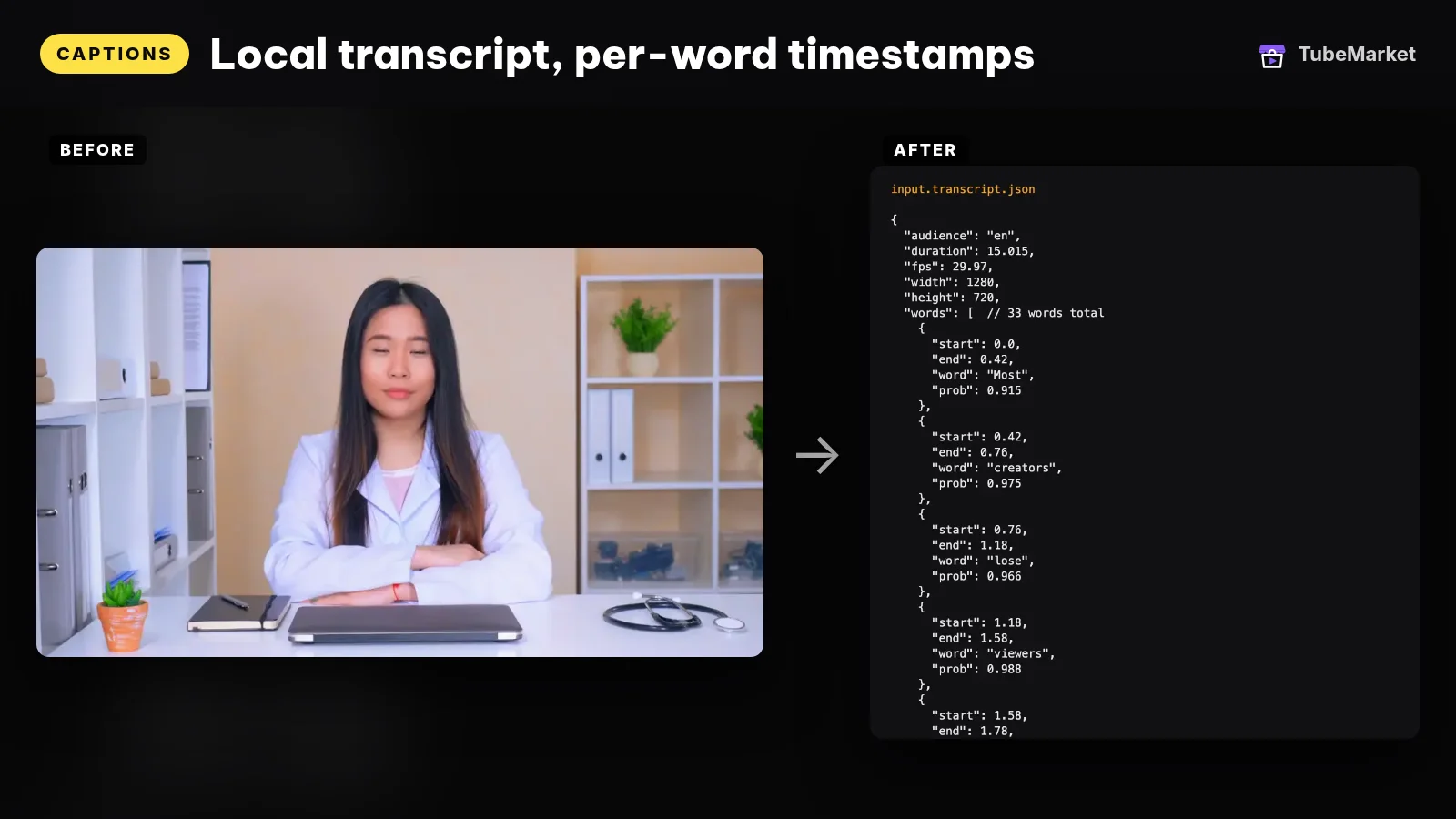
Start with a transcript that has a timestamp for every word. The later steps can use it to find pauses and to time captions. Whisper runs locally and detects the language for you.

Step 2: Cut silences and filler words
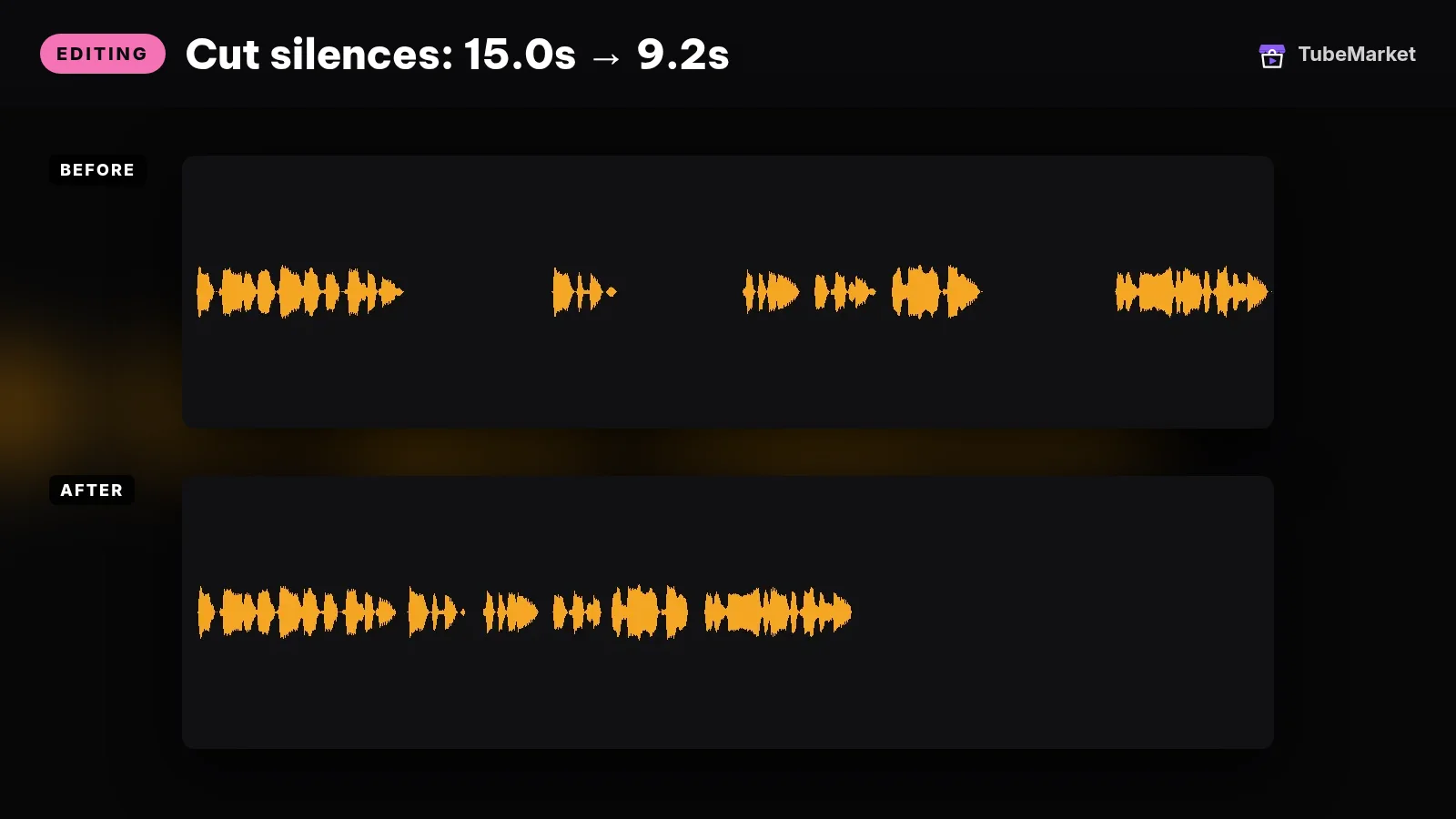
Next, remove the gaps and the "um" and "uh" moments. The skill does the cutting with ffmpeg on your machine, so the original file never leaves your disk. Watch the result once before moving on: aggressive cuts can clip the start of a sentence.
Step 3: Reframe to 9:16
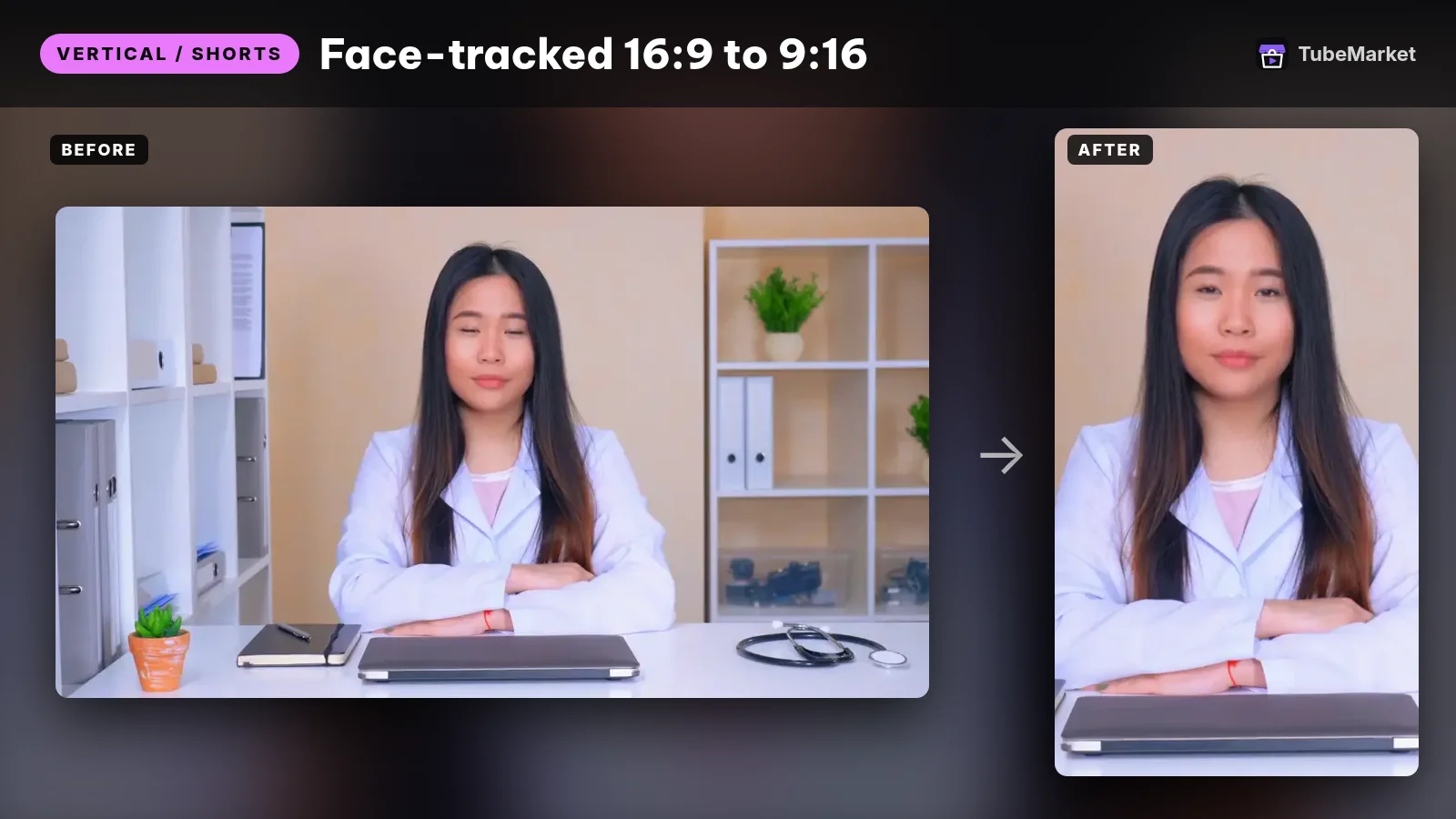
Then convert the trimmed landscape cut into a vertical video that follows the speaker, using clean hard cuts instead of slow pans.
Step 4: Burn in word-by-word captions
On-screen text lets viewers follow along even with the sound off. This skill burns animated captions into the video one word at a time and supports full Unicode, which helps if you publish in more than one language.
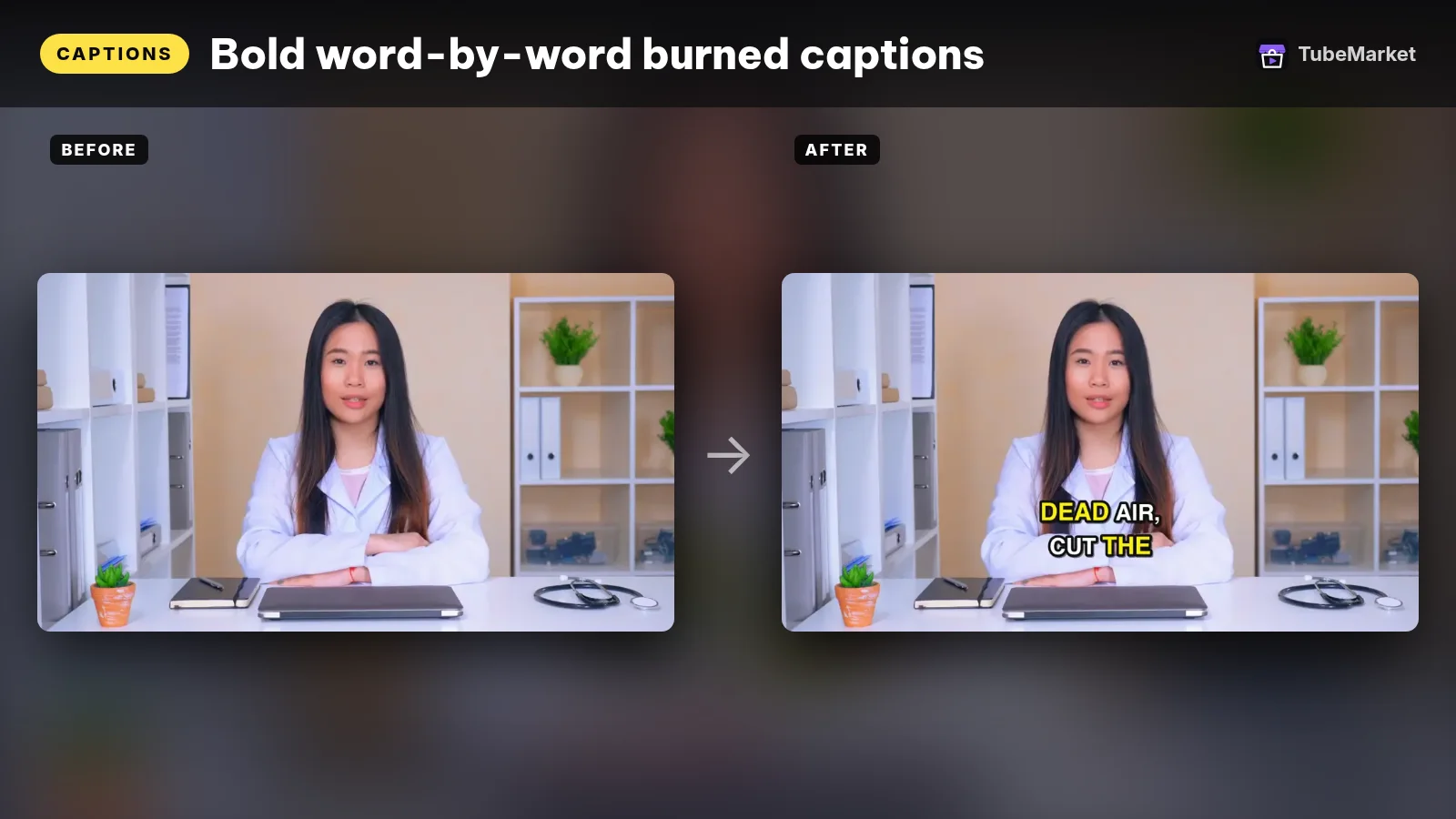
Tip: burn captions last. Reframing crops the sides of the frame, so captions added before the crop can be cut off. If your captioner works from a transcript, run step 1 again on the trimmed file so the word timings match the cut.
Where to go next
The order above is a starting point, not a rule. Browse the editing stage to swap in a different captioner or add a zoom effect, and if you build a skill that fits this chain, you can submit it to TubeMarket.